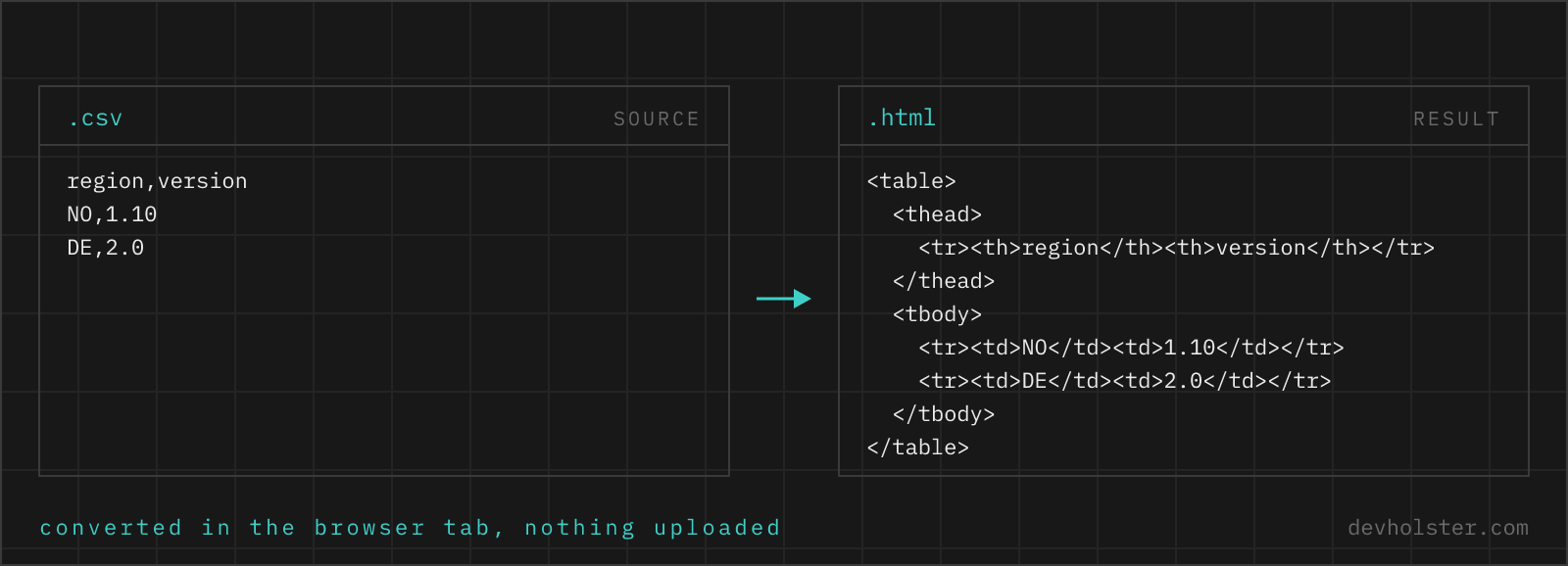
Why convert CSV to an HTML table
Because data that lives in spreadsheets keeps needing to appear on web pages: price lists, opening hours, feature comparisons, league tables, spec sheets. The path from CSV to page is either runtime (fetch the file, build DOM with JavaScript) or build time (generate the markup once and paste it in), and for data that changes weekly rather than per-second, static markup wins on every axis: no loading state, no script dependency, indexable, cacheable.
The reason to use a converter rather than typing <td> forty times is not just speed. Hand-built tables reliably skip the parts that do not show: the thead wrapper, header cells as th instead of bolded td, the scope attribute, escaping of & in values. None of these change what sighted users see, all of them change what screen readers, styling hooks and parsers can do with the table.
How to use this converter
Paste CSV into the left pane, or drop a .csv file on it, and the HTML appears on the right while you type. Comma, semicolon and tab delimiters are detected automatically, so Excel clipboard data pastes directly.
- Paste or drop your CSV. The first row becomes the header row inside
thead. - Check the numbers. The strip under the panes counts the body rows the table will have.
- Copy into your page. The markup is a complete, self-contained
<table>element; it drops into any HTML, JSX-with-adjustments, or CMS raw-HTML block.
--no-header
Treats the first CSV row as data: no thead is emitted and every row becomes a tbody row of td cells. For genuinely headerless data only; if the data has column meanings, a header row is worth adding for both readers and accessibility.
--compact
Emits the whole table on one line without indentation. The rendering is identical; use it where the markup goes through systems that mangle whitespace, or to shave bytes. The default pretty form is for markup you maintain by hand afterwards.
The markup this tool emits, and why each part is there
| Part | Purpose |
|---|---|
<thead> / <tbody> | Separates header from data; enables sticky headers, striping that skips the header, and library hooks |
<th scope="col"> | Header cells announced as headers; scope ties each data cell to its column for assistive tech |
<td> | One per cell, in source order, empty cells included so columns stay aligned |
| HTML escaping | &, <, >, quotes become entities; data renders as text, never as markup |
<br> for in-cell breaks | Multi-line cells (quoted in the CSV) render as lines within the cell |
Deliberately absent: inline styles, class attributes, ids, and width attributes. Styling belongs to your stylesheet, and generated markup that presumes class names becomes noise to delete. The output is the semantic skeleton; everything visual is one CSS layer away.
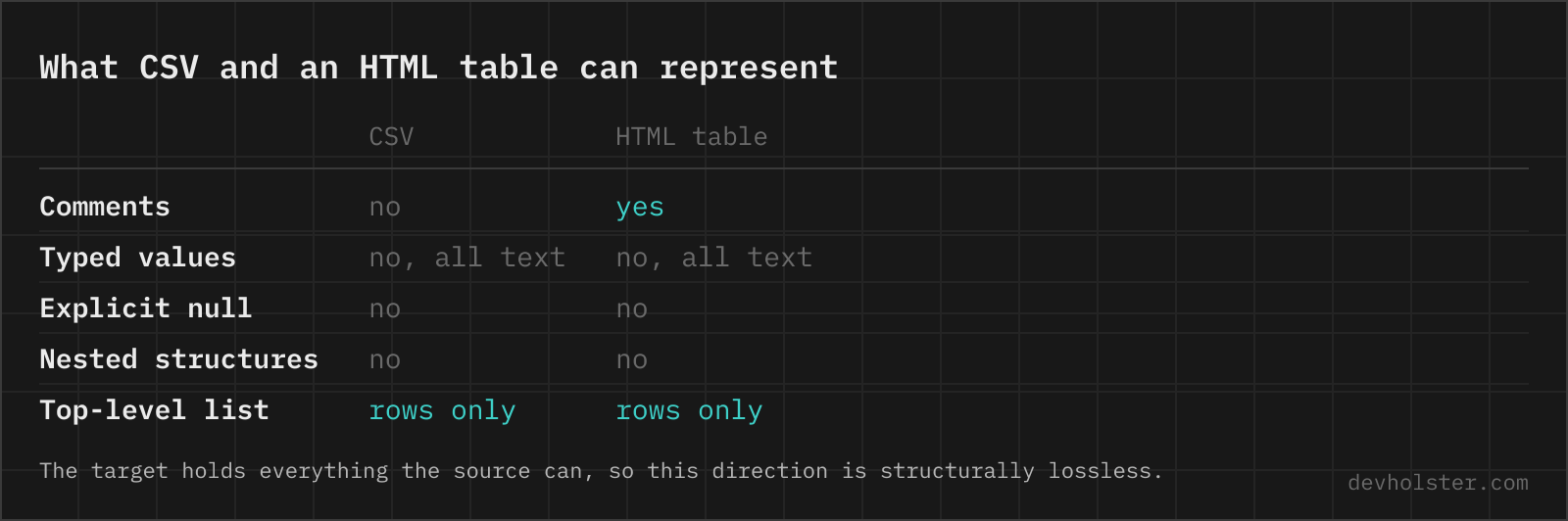
Why th and scope matter more than they look
A sighted reader sees a grid and infers structure from position. A screen reader user hears one cell at a time, and the only thing connecting 42.90 to the concept "price" is markup. With plain td cells everywhere, a table is a sequence of context-free values; with th scope="col" headers, each cell is announced together with its column header, and navigation commands like "next column" work.
This is also a legal topic now: the European Accessibility Act applies to most consumer-facing sites since June 2025, and table semantics are among the first things automated audits (Lighthouse, axe, WAVE) flag. Getting them for free from a converter is the cheapest compliance you will ever acquire. For tables with row headers too (a first column of names, say), add scope="row" to those cells by hand; a generic converter cannot know which columns are headers, so it handles the universal case and leaves that judgment to you.
Styling the table without fighting it
The emitted markup styles cleanly because hooks exist at every level. A minimal, decent-looking baseline in vanilla CSS: table { border-collapse: collapse }, th, td { padding: .5em .75em; text-align: left }, tbody tr { border-bottom: 1px solid #ddd }, thead th { border-bottom: 2px solid #999 }. Right-align numeric columns with td:nth-child(n) selectors, and add tbody tr:hover shading for wide tables.
With frameworks it is shorter still: Bootstrap turns the markup into a styled table with class="table" on the table element; Tailwind projects usually reach for the typography plugin or a few utilities on a wrapper. For sortable columns, libraries like tablesort and DataTables attach directly to the thead this tool emits. One layout tip regardless of framework: wrap wide tables in a container with overflow-x: auto, so phones scroll the table instead of the page breaking.
Pitfalls to check after converting
- JSX is not HTML. Pasting into React requires no changes for this output (no class attributes, no unclosed tags except
<br>, which JSX wants as<br />). Run a find-and-replace on<br>if your cells had line breaks. - Numbers keep display formatting. A CSV cell of
1,299.00renders exactly so. If the page should localise numbers, that is a content decision to make in the data before converting. - No caption included. A
<caption>naming the table helps both accessibility and SEO, but its text is not derivable from the data; add one manually as the first child of the table. - Large tables are heavy DOM. Hundreds of rows are fine, thousands deserve pagination or a different presentation; the FAQ has concrete numbers.
- Header mismatch. If the first row was data, not headers, it is now sitting in bold in the thead. Toggle
--no-headerand re-copy.
HTML table questions
Is it safe to paste internal data into an online CSV converter?
Only into one that converts in your browser. Price lists, customer exports and internal reports are the typical input, and an upload-based converter keeps a copy of every one of them. The conversion runs here as JavaScript inside your tab, so nothing is uploaded or logged, and the page works offline. For any other tool, open the Network tab in devtools and convert a dummy file first: if a request goes out, so does your data.
How do I display a CSV file as a table on my website?
Generate the markup once instead of parsing the file in the browser. Static table markup pasted into the page is smaller, renders on the first paint and is indexable, while a runtime fetch plus a JavaScript parser costs a request, a library and a layout shift, and search engines see an empty container until the script runs. Convert the CSV to a table when the data changes on a release cycle, which covers price lists, comparisons and documentation. Load and parse at runtime only when the file is genuinely dynamic (an export that updates hourly, a dataset too large to inline), and then render server-side if your stack allows it.
What is the correct HTML structure for a data table?
A <table> containing a <thead> with one row of <th scope="col"> header cells, and a <tbody> of rows with <td> cells. That structure, which this converter emits, is what HTML defines for tabular data; screen readers use it to announce the column a cell belongs to, and CSS and JavaScript libraries hook into thead/tbody for sticky headers, striping and sorting.
What is the scope attribute on th elements for?
It tells assistive technology which cells a header governs: scope="col" for a column header, scope="row" for a row header. Sighted users infer this from position; a screen reader announcing a single cell cannot, so it reads the associated header along with the value. It costs nothing and is the single cheapest accessibility win in table markup, which is why this converter includes it on every header cell.
How do I stop data from a CSV breaking the page it is pasted into?
Escape every cell before it becomes markup. A value containing < or & is read as the start of a tag or an entity, so one product description with a <div> in it swallows the rest of your table, and a column fed from user input is the textbook route for stored XSS. Escaping turns < into < and & into &, which renders the characters and builds nothing. Do it in the generator or in the template (textContent instead of innerHTML, auto-escaping in Twig, Blade or Jinja), never with a regex that strips tags, because that misses attribute contexts and encoded payloads. Every cell in the output above is escaped for exactly this reason.
How do I make the HTML table look good with CSS?
Three rules carry most of the way: border-collapse: collapse on the table, padding on th and td (0.5em 0.75em is a sane start), and a border-bottom on rows rather than full grid lines. Add text-align: right for numeric columns and a stronger bottom border under the thead. Because the converter emits clean thead/tbody structure, frameworks work too: Bootstrap needs class="table", Tailwind styles it with a handful of utilities.
Can the table be sorted or filtered?
Static HTML alone cannot sort, but the emitted structure is exactly what sorting libraries expect. Lightweight options like sortable or tablesort attach to any table with a proper thead; DataTables adds paging and filtering. Progressive enhancement applies: the table is complete and readable without JavaScript, and a library upgrades it where scripts run.
How do I make an HTML table responsive on mobile?
Pick one of three approaches, because none of them is right for every table. Horizontal scrolling is the honest default: wrap the table in a div with overflow-x: auto and let the columns keep their width, which preserves the grid and works with any number of columns. Card stacking turns each row into a block on narrow screens, using CSS to hide the header row and data-label attributes to repeat the column name next to each value; it reads well for two or three columns and falls apart beyond that. Dropping columns below a breakpoint is the third option and the one to be careful with, since content hidden on mobile is still downloaded and is invisible to the person who needs it most. Whatever you choose, keep the table markup intact and solve it in CSS, so screen readers still get the row and column relationships.
Should I use a table or divs with CSS grid?
For data, a table. The rule from the HTML spec is about meaning: tabular data (rows and columns whose intersection carries meaning) belongs in <table>, layout belongs in CSS. Divs styled into a grid lose the semantics screen readers and search engines rely on, and re-implementing sticky headers and cell association by hand is more work, not less. Layout tables are the anti-pattern; data divs are the mirror image.
What happens to line breaks inside CSV cells?
They become <br> tags, so a multi-line address renders as multiple lines inside one cell. The quoting in the CSV (line breaks are only data when the cell is quoted) decides what is a row break versus an in-cell break, and this parser follows RFC 4180 on that distinction.
How big can the table be before it becomes a problem?
Browsers render tens of thousands of rows, but users scroll away long before that, and every row is DOM weight. Beyond a few hundred rows, consider pagination, a search filter, or keeping the data as a downloadable CSV with a summary table on the page. As a data point, a 1000-row, 6-column table from this converter is roughly 150 KB of HTML, which is more than most entire pages.