Every Markdown file is an HTML file waiting to be rendered, and the rendering is where it goes wrong: the README that looks fine on GitHub and falls apart in the CMS, the comment whose line breaks vanished, the table of contents whose links scroll nowhere. This page renders as you type, shows the HTML it made, lists the headings with their anchors, and points at the lines that will misbehave.
What comes out, and where it goes
The left pane is the editor. The right pane shows the same document three ways, one tab each. Preview is the rendered page, styled like an article rather than like a code box, so headings, tables and code blocks look the way they will in a real page. HTML is the generated source, indented by nesting so a <ul> inside a <li> reads as one. Outline is the heading tree with the anchor id each heading got, and a click on any entry scrolls the preview to it.
Three things leave the page. Copy HTML puts the source on the clipboard, download .html saves it under the title of the first heading, and copy as rich text puts the rendering on the clipboard as formatted text, so a paste into Gmail, Outlook, Word, Google Docs, Confluence or Notion arrives with its headings, lists, bold and links intact instead of as a wall of asterisks. That last one is the reason most people need a Markdown to HTML converter at all: the README is written, and someone wants it in an email.
The other reasons are quieter. Previewing a file before it lands in a commit, because the GitHub preview button only exists in the web editor. Getting HTML for a CMS, a newsletter tool or a wiki that has no Markdown field. Checking what a renderer does with a construct you are not sure about, with the HTML right there to read. Everything happens in this tab. The file is never uploaded, which matters for the internal runbook and the unreleased changelog.
Under the two panes sit the findings. They are the second half of the tool: a heading that jumps from h1 to h3, a second h1, an image with no alt text, a link with an empty target, a table row with the wrong number of cells (the usual state of a hand-edited table, a generated one from CSV to Markdown Table rarely has it), a code fence that never closes, a line that ends in two invisible spaces and will render a <br> nobody intended. Each row names the line, and a click puts the cursor there.
The five switches
--gfm
On by default, because GitHub is where most Markdown is read. It enables pipe tables, task lists (- [ ] and - [x]), strikethrough with ~~ and autolinks for bare URLs. Off means plain CommonMark: the table renders as a paragraph full of pipes, the checkbox stays as literal brackets, the URL stays text. The findings say so when a table or a bare URL is in the document and GFM is off.
--breaks
A single newline inside a paragraph becomes <br>, the way GitHub renders comments and issues and the way Slack and most chat tools read Markdown. Off is the CommonMark rule, and the rule GitHub applies to .md files: a newline is a space. marked only honours the switch in GFM mode, so with --gfm off it does nothing and the findings say so. The next section has the full story, because this switch is the most common reason two renderings of the same text differ.
--heading-ids
Gives every h1 to h6 an id computed the way GitHub computes its anchors, so a table of contents written for the README keeps working in the exported HTML. The outline tab shows the ids and copies the whole tree as a nested Markdown list.
--document
Wraps the fragment in a complete HTML5 page: doctype, <meta charset="utf-8"> (without it a browser opening the file from disk guesses the encoding and umlauts turn into mojibake), a viewport tag, the first h1 as <title> and a few lines of CSS so the file opens readably from disk. Off gives the bare fragment, which is what a CMS body field or a template slot wants.
--sanitize
Runs the HTML output through DOMPurify 3. Script tags, javascript: URLs, on* handlers and unknown elements disappear, and the findings count what was removed. Off passes raw HTML through untouched, with a note under the output. The preview is sanitized in both cases, for the obvious reason that it is rendered inside this page.
CommonMark vs GFM vs Markdown.pl
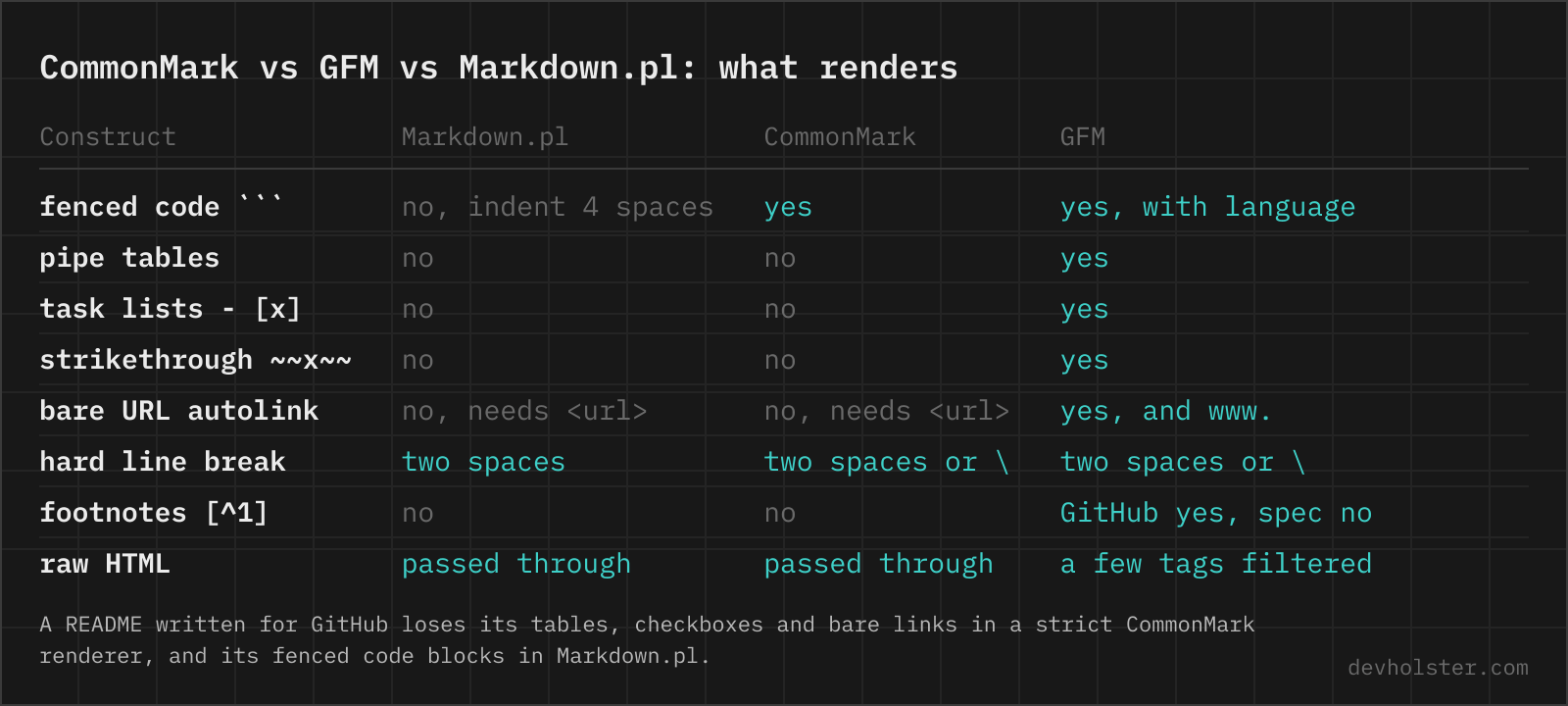
"Markdown" names three things that disagree. The original is Markdown.pl, John Gruber's Perl script from 2004, whose documentation is a prose description with a lot of unstated edge cases. CommonMark is the 2014 effort to write those edge cases down as a specification with a test suite of more than 600 examples, and it is what almost every modern renderer implements. GFM, GitHub Flavored Markdown, is CommonMark plus a fixed list of extensions, published by GitHub as its own spec in 2017.
| Construct | Markdown.pl | CommonMark | GFM |
|---|---|---|---|
fenced code blocks ``` | no, indent 4 spaces | yes | yes, with language info |
| pipe tables | no | no | yes |
task lists - [x] | no | no | yes |
strikethrough ~~x~~ | no | no | yes |
| bare URL autolink | no, needs <url> | no, needs <url> | yes, also www. |
hard break by two spaces or \ | two spaces | both | both |
footnotes [^1] | no | no | rendered on GitHub, not in the spec |
| raw HTML | passed through | passed through | passed through, a few tags filtered |
The practical consequence is that a document written for GitHub carries tables, checkboxes and bare links that a strict CommonMark renderer turns back into text. Python-Markdown is the notable holdout on the other side, it still follows the Markdown.pl lineage and needs its tables and fenced_code extensions switched on before a GitHub README renders the way it does on GitHub. The --gfm switch above is the same difference, in one click, with the findings naming the constructs that would be lost.
Why GitHub READMEs and GitHub comments break lines differently
Same site, two rules. In a .md file GitHub follows CommonMark. A newline inside a paragraph is a soft break and renders as a space, so a paragraph wrapped at 80 columns in the editor flows as one paragraph. In issues, pull request descriptions and comments, GitHub switches to hard breaks: every newline is a <br>, because people writing comments expect Enter to mean a new line, the way it does in chat. Slack, Discord, Mattermost and most commenting systems use the second rule. Docs generators, static site builders and wikis use the first.
Both rules are a one-line option in every renderer: breaks: true in marked and markdown-it, the nl2br extension in Python-Markdown, +hard_line_breaks in pandoc. When a text renders with its line breaks in one place and without them in another, that option is the answer nine times out of ten. The tenth time, the source has two trailing spaces somewhere, which is a hard break in every dialect and invisible in every editor. The findings list those lines.
Heading anchors, the GitHub way
A table of contents in a README is a list of links to heading ids, and the ids are not in the file. GitHub generates them from the heading text when it renders, with a rule that is simple to state and easy to get wrong by hand, a URL slug without the transliteration: lowercase everything, keep letters, digits, spaces, hyphens and underscores, drop every other character, then turn spaces into hyphens. Duplicate headings get -1, -2 and so on in document order. Emoji and punctuation vanish entirely, which is how ## Set-up & Install turns into #set-up--install with two hyphens in a row, one from the original hyphen and one from the space that stood next to the ampersand.
## Set-up & Install

- [Install](#Set-up-&-Install)

→ scrolls nowhere: no uppercase, no & in the id
## Set-up & Install

- [Install](#set-up--install)

→ lowercase, & dropped, the space became a second hyphen
Two details bite in practice. Inline code in a heading keeps its text but loses the backticks, so ## The `--breaks` flag becomes #the---breaks-flag, three hyphens. And GitHub prefixes the real DOM id with user-content- and resolves the bare fragment with a script, so a TOC copied from a GitHub page into another site works only if that site generates the same ids. Exporting the HTML with --heading-ids on keeps the links working outside GitHub, and the outline tab's copy as Markdown TOC writes the list with the computed anchors so there is nothing to guess.
HTML inside Markdown, and why the preview sanitizes
Raw HTML is part of the syntax. CommonMark passes inline tags and HTML blocks through unchanged, which is what makes <details>, <kbd>, <img width="300"> and <p align="center"> possible in a README. It is also what makes every Markdown renderer an HTML injection vector the moment it renders text written by someone else. The payloads are not exotic:
<script>alert(1)</script>as an HTML block, passed through verbatim.<img src=x onerror="alert(1)">, an event handler on a broken image.[click](javascript:alert(1)), pure Markdown syntax, no angle bracket anywhere. marked turns it into<a href="javascript:alert(1)">without complaint.
Renderers handle this differently, and the difference is worth knowing before picking one. marked documents that it does not sanitize and tells you to run the output through DOMPurify. markdown-it escapes raw HTML unless html: true is set and refuses javascript:, vbscript: and data: links out of the box. GitHub passes HTML through and then filters it server-side, the GFM spec's tagfilter removes <script>, <style>, <iframe>, <textarea> and a handful more, and GitHub's own filter goes further and strips every on* attribute and every style.
The preview on this page is sanitized with DOMPurify whether or not --sanitize is on, because it is injected into this page's DOM and an unsanitized preview would execute whatever was pasted. The switch only decides whether the HTML you copy out is cleaned too. Leave it on unless the output goes into a system that sanitizes on its own or the Markdown is entirely yours.
Converting in code
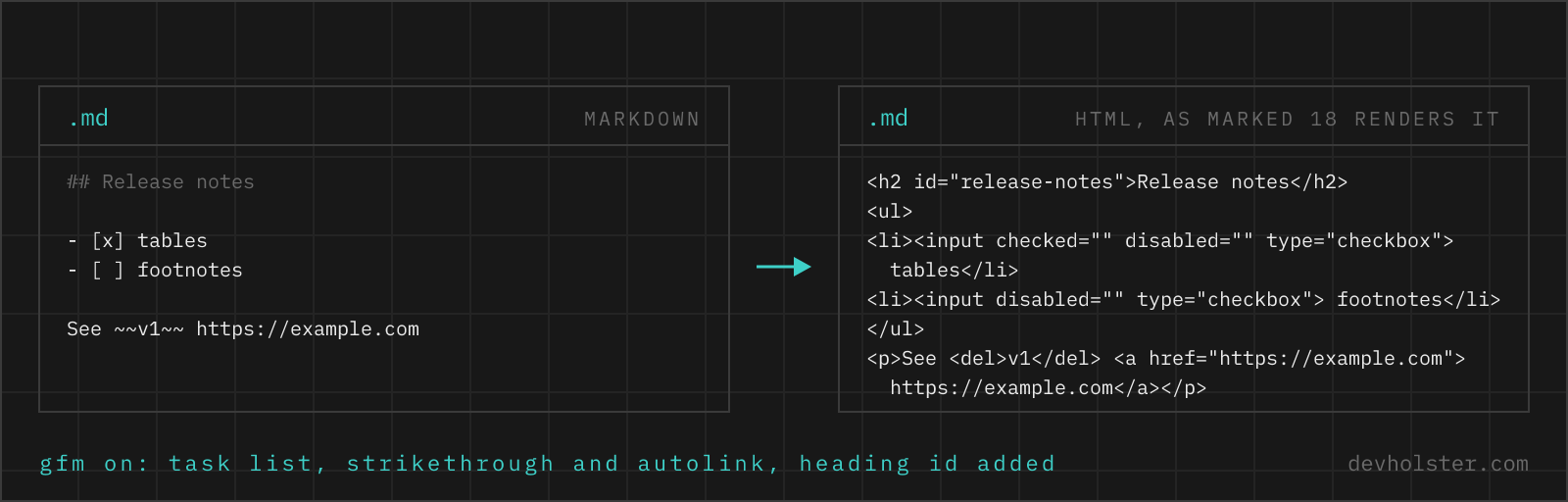
The converter above runs marked 18 in the browser. The same call works in Node, and the output shows the GFM extensions at work: the task list becomes a disabled checkbox, the tildes become <del>, the bare URL becomes a link.
$ node -e "const {marked}=require('marked');process.stdout.write(marked.parse('- [x] tables\n\nSee ~~v1~~ https://example.com'))"
<ul>
<li><input checked="" disabled="" type="checkbox"> tables</li>
</ul>
<p>See <del>v1</del> <a href="https://example.com">https://example.com</a></p>
The other renderers, with the one line that matters for each:
| Renderer | Call | Worth knowing |
|---|---|---|
| marked (JS) | marked.parse(md, { gfm: true, breaks: false }) | small and fast, no sanitizing, extensions via marked.use() |
| markdown-it (JS) | new MarkdownIt({ html: false, linkify: true }).render(md) | plugin ecosystem (footnotes, containers, anchors), safe defaults |
| remark / unified (JS) | unified().use(remarkParse).use(remarkGfm).use(remarkRehype).use(rehypeSanitize).use(rehypeStringify) | a real AST between parse and print, the engine under MDX and react-markdown |
| Python-Markdown | markdown.markdown(md, extensions=['tables', 'fenced_code']) | Markdown.pl lineage, GFM pieces are extensions |
| markdown2 (Python) | markdown2.markdown(md, extras=['tables', 'fenced-code-blocks']) | single file, same extension story |
| pandoc | pandoc -f gfm -t html5 -s in.md -o out.html | also writes docx, pdf, epub, and reads HTML back |
| GitHub API | POST /markdown with { "text": md, "mode": "gfm" } | GitHub's exact rendering, rate limited, requires a network call |
One habit that has paid for itself is to render the same README with the renderer the deployment target uses, not the one the editor uses. VS Code previews with markdown-it, GitHub renders with its own build of the GFM parser, the docs site might run remark. They agree on ninety-five percent of a document and disagree on the footnote, the alert box and the raw HTML tag that one of them filters, which a diff of the two HTML outputs shows in seconds. The cost of the habit is a second tool in the loop, which is why this page exists.
The way back
HTML to Markdown is lossy and still useful, for pulling a page into a wiki or turning an email into an issue. Turndown is the JavaScript library for it, pandoc -f html -t gfm the command line. Tables, nested lists and anything styled with CSS are where both need a second look.
Which renderer, where
marked when the job is "Markdown in, HTML out" and speed or bundle size matters, with DOMPurify behind it whenever the text is not your own. markdown-it when you need plugins: footnotes, custom containers, heading anchors, emoji, all exist and compose. remark when you need the syntax tree, because you are transforming the document (linting it, extracting headings, embedding components) rather than just printing it. pandoc when the output is a document in the human sense, a docx for the client or a PDF for the release, and when the input is not Markdown at all.
That advice is wrong in one case, when the output has to match GitHub exactly. A README preview inside a tool, a bot that renders issue bodies, a docs site that promises "renders like GitHub". Every JavaScript renderer deviates from GitHub in corners. marked passes a <script> block through where the tagfilter escapes it, and both marked and markdown-it turn a footnote [^1] into a plain link whose href is the footnote text, and leave a > [!NOTE] alert as a blockquote with brackets in it. For that job use the GFM reference parser cmark-gfm through its bindings, or GitHub's Markdown API, and accept the network call.
The tool above uses marked, for the same reason the first line of the verdict does.
Markdown rendering questions
How do I convert Markdown to HTML?
Paste it into a renderer and copy the HTML, or run one in your stack: marked or markdown-it in JavaScript, Python-Markdown in Python, pandoc on the command line. All of them read the same core syntax. What differs is the extensions (tables, task lists, strikethrough, autolinks) and whether a newline inside a paragraph becomes a line break, so check the GFM and breaks settings before comparing outputs. The converter on this page does it live in the tab, with the HTML on its own tab and a rich-text copy for pasting into an email or a document.
How do I preview Markdown in VS Code?
Ctrl+Shift+V on Windows and Linux, Cmd+Shift+V on macOS. Ctrl+K then V opens the preview beside the editor instead.
How do I add a table of contents to a GitHub README?
Write a list of links to the heading anchors: - [Install](#install), indented for sub-headings. The anchor is the heading text lowercased, spaces turned into hyphens, punctuation removed. GitHub also shows an automatic outline behind the list icon at the top of every rendered README, but that is a menu, not content in the file. Tools that generate the list for you include doctoc and markdown-toc on npm, and the outline tab of the converter above, which copies the headings as a nested Markdown list.
Why does Markdown not render my line breaks?
Because a single newline inside a paragraph is a soft break, and CommonMark turns it into a space. That is the rule in README files, in docs sites and in most static site generators. To force a line break, end the line with two spaces or a backslash, or leave an empty line to start a new paragraph. GitHub comments, issues and Slack use the opposite rule and turn every newline into <br>, which is why the same text looks different in a comment and in the README.
How do I link to a heading in Markdown?
Use the heading anchor as the target: [see the install step](#install) for a heading that reads ## Install. The anchor is generated from the text, on GitHub by lowercasing, dropping punctuation except hyphens and underscores and replacing spaces with hyphens, so ## Set-up & Install becomes #set-up--install. A second heading with the same text gets -1 appended. Turn --heading-ids on above and the outline tab shows every anchor.
Can you use HTML in Markdown?
Yes. Raw HTML passes through every CommonMark renderer, inline tags like <kbd> and <sup> as well as blocks like <details> and <table>. Three limits: Markdown inside an HTML block is not processed, a blank line ends the block, and the receiving site usually filters tags. GitHub strips script, style, iframe and every on* attribute and keeps things like align and width. A renderer that is shown to other users has to sanitize the result, which is what --sanitize does here with DOMPurify.
Markdown vs HTML, which should I learn?
HTML, and Markdown takes an afternoon on top of it. Markdown is a shorthand that compiles to a small subset of HTML (headings, paragraphs, lists, links, images, code), and the moment you need a two-column layout, an attribute or a class you write HTML inside the Markdown anyway. Knowing what <ul> and <li> are is what makes a broken nested list debuggable. Markdown earns its place where humans write prose in a text editor: READMEs, docs, issues, comments.
How do I convert Markdown to HTML in Python?
pip install markdown, then markdown.markdown(text, extensions=["tables", "fenced_code"]). Python-Markdown follows the original Markdown.pl rules, so tables and fenced code blocks are extensions you switch on, and a newline is a space unless you add nl2br. markdown2 is the alternative with the same idea and extras=["tables", "fenced-code-blocks"]. For a CommonMark-compliant parser with the GFM extensions, markdown-it-py is the port of markdown-it and is what MyST and Jupyter Book use.
How do I convert a .md file to HTML with pandoc?
pandoc -f gfm -t html5 -s README.md -o readme.html. Drop -s for a fragment without <html> and <head>.
What is GFM?
GitHub Flavored Markdown: CommonMark plus the extensions GitHub added and wrote up in its own spec in 2017. The extensions are pipe tables, task list items, strikethrough with ~~, automatic links for bare URLs and www. addresses, and a filter for a few raw HTML tags. Footnotes and alerts render on GitHub too but are not part of the GFM spec document. Most renderers ship the GFM set behind a flag or a plugin, marked has gfm: true on by default.
How do I add an image in Markdown with a specific size?
Markdown has no size syntax, so use the HTML tag: <img src="diagram.png" width="400" alt="Request flow">. GitHub keeps width and height attributes and drops style, so the attribute form is the one that works in a README. Some renderers add their own syntax, pandoc accepts {width=400} and Obsidian , neither of which GitHub understands.
How do I center text in Markdown?
There is no Markdown syntax for alignment. On GitHub, <p align="center">text</p> or <div align="center"> around an image works, because the align attribute survives the HTML filter while style does not. In a docs site that lets you add CSS, a class on a wrapping <div> is the cleaner version.