Start a call from a link, a QR code or two IDs
This page connects exactly two browsers for a free video call with camera, microphone and screen sharing, and it asks for no account, no app and no download. The moment you start, you get an eight-character ID. Press copy invite link and send it over any channel you already have, or show the QR code and let the other person scan it with their phone camera. Whoever opens the link lands straight in your call. The IDs and the way the two browsers find each other are the same as on the peer-to-peer chat, and that page walks through every step of the setup.
The three buttons under the picture ask for one device each, and nothing is requested before you press. Camera opens the camera, microphone the microphone, share screen the browser's own picker. All three work while you are still waiting, which is the moment to check your picture and get the permission prompt out of the way. When the other person arrives, whatever is on reaches them at once.
Switching a device off stops it. Most call apps mute instead, so the camera stays open and its light stays on while the other side sees black. Here the light goes out, and switching back on asks the browser for the camera again. The difference is one line of code.
track.enabled = false;
track.stop();
stream.removeTrack(track);
Every tile has a full screen button, a double click does the same, and where the browser supports it a second button floats the video in picture in picture. That floating window stays on top of everything, so you can put a shared screen into full screen and keep the other person's face in a corner. A shared screen from the other side takes the full width of the stage on its own.
Nothing is recorded or stored anywhere. Leave stops your devices and ends the call, closing the tab does the same, and a reload hands you a fresh ID. If the other browser drops out, your tab keeps waiting under the same IDs with your camera still on, in case they come back. A third browser that shows up with the same IDs is turned away automatically.
How a call works without a video server
A video call needs two things, a way for the browsers to find each other and a path for the media. Finding each other is the job of the invite. The two IDs name a room, both browsers announce themselves under a hash of that name on public Nostr relays, and the connection offer travels through those relays encrypted with a key derived from the IDs. Cloudflare's STUN server at stun.cloudflare.com, free to use per its Realtime TURN docs, tells each browser which public address its packets come from. Neither the relays nor the STUN server ever see a frame. The chat page explains each of these steps in detail, this one skips ahead to the part where video is different.
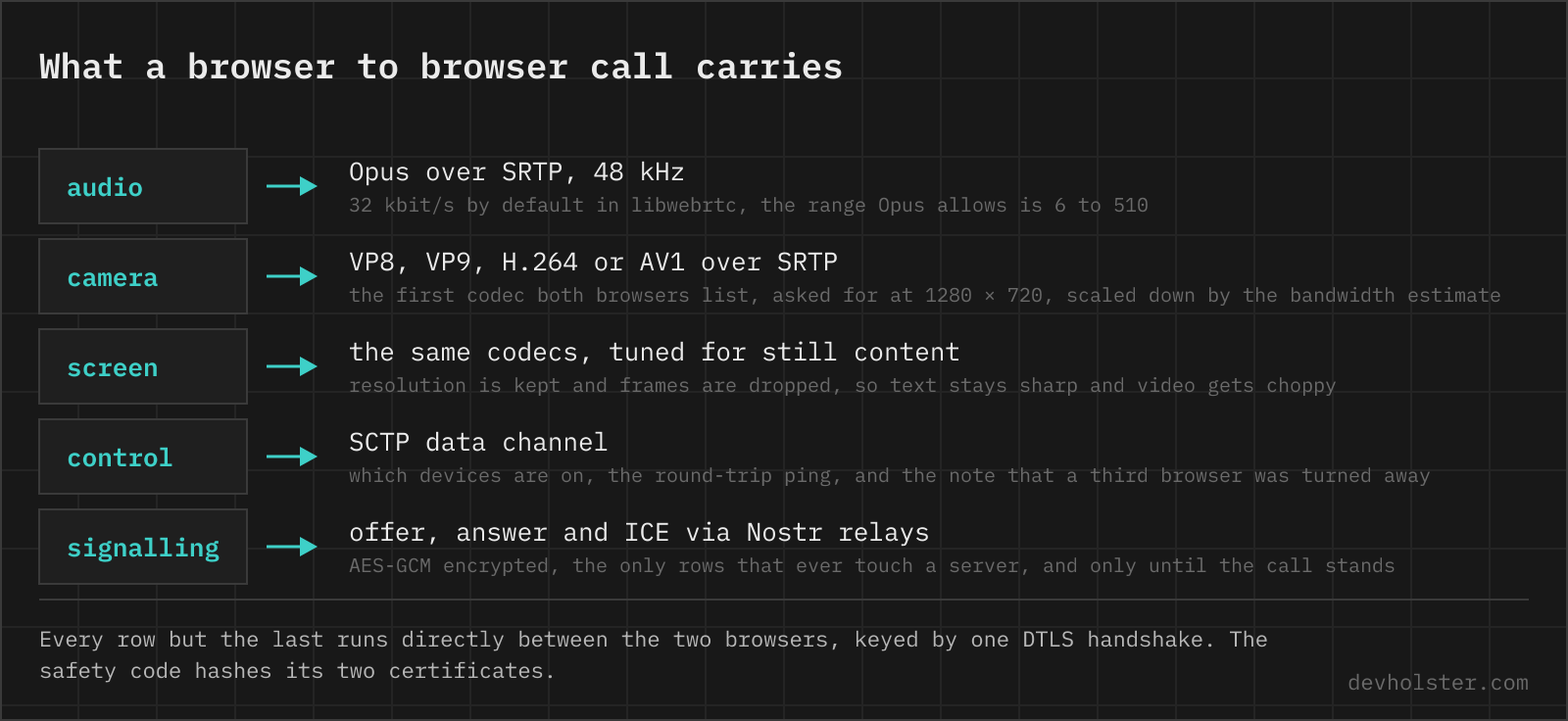
Once the setup is done, the media runs directly. Sound and picture travel over RTP wrapped in SRTP for encryption, and the keys come out of the same DTLS handshake that protects the data channel, a scheme called DTLS-SRTP. That is why the six-digit safety code covers the video too. It hashes the two DTLS certificate fingerprints, and a relay that wanted to watch your call would have to terminate the handshake with its own certificate, which changes the code on one side. Read the code aloud once and you have ruled that out.
Before the first frame, the browsers agree on a codec. Each lists what it can encode, the other picks the first entry it can decode, and both use hardware where the device has it. The camera is requested at 1280 × 720, and the browser scales down whenever its bandwidth estimate says so. The codec and picture size next to the status show the outcome of that negotiation, live.
Every button press changes the connection. A camera added mid-call is a new track, which means a fresh offer and answer carried over the connection that already stands, and the other side sees it arrive a moment later. A camera switched off and on again arrives as a brand-new track, which is why the page throws the old one away instead of leaving a frozen frame in front of the fresh picture.
What a video call costs in data
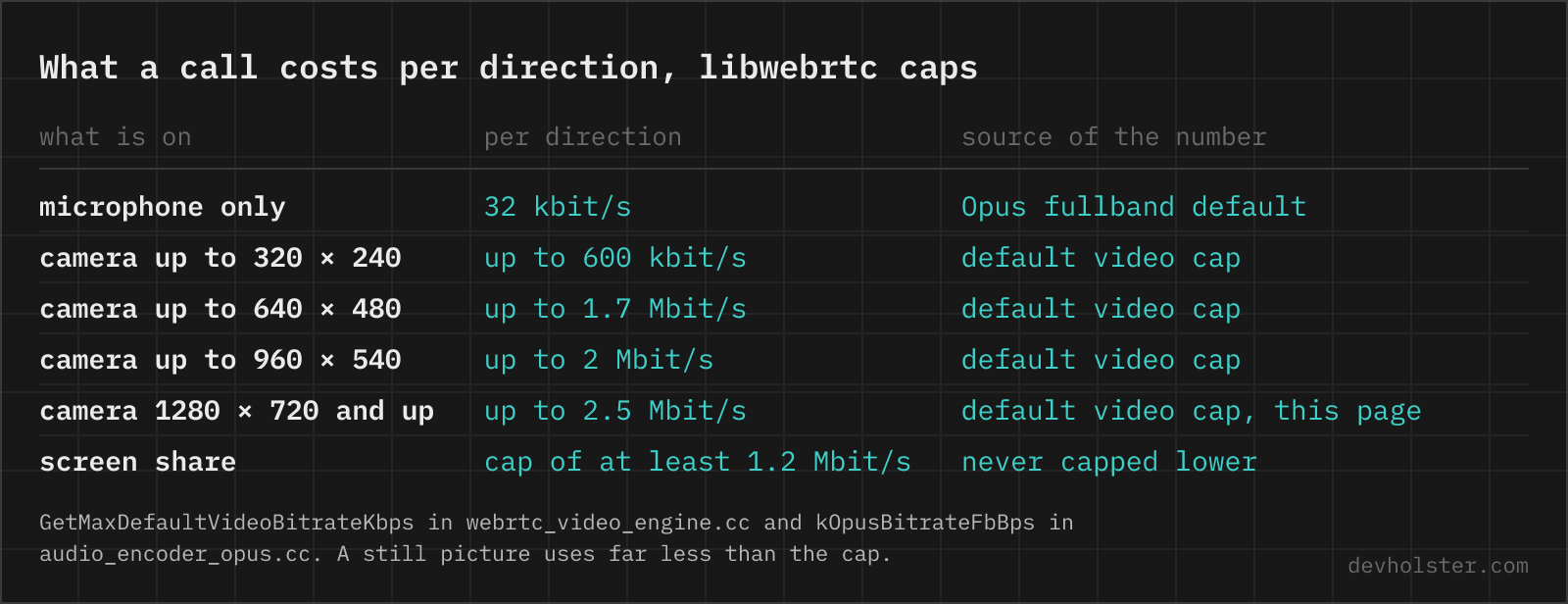
The numbers below are the default caps in libwebrtc, the WebRTC engine inside Chrome, Edge, Firefox and Safari. A real call sits under its cap most of the time, because a talking head against a still wall compresses well and the encoder only spends what the picture needs.
| What is on | Per direction | Where the number comes from |
|---|---|---|
| microphone only | 32 kbit/s | Opus fullband default in libwebrtc |
| camera up to 320 × 240 | up to 600 kbit/s | default video cap for that size |
| camera up to 640 × 480 | up to 1.7 Mbit/s | default video cap for that size |
| camera up to 960 × 540 | up to 2 Mbit/s | default video cap for that size |
| camera 1280 × 720 and above | up to 2.5 Mbit/s | default video cap, the size this page asks for |
| screen share | cap of at least 1.2 Mbit/s, otherwise as above | libwebrtc never caps screen content lower |
Both directions add up. A 720p call with a screen share on top can ask a home connection for 5 Mbit/s upstream, more than many DSL and mobile plans give in the upload direction, and the encoder then falls back to a smaller picture on its own. At the cap, 2.5 Mbit/s each way comes to 2.25 GB of mobile data per hour. Voice alone is a different world, 32 kbit/s with Opus, or 14 MB per hour and direction.
Screen sharing with no download
Share screen calls getDisplayMedia, and the browser takes over from there. It shows its own picker for a tab, a window or the whole screen, the page never sees the list, and the picker only opens from a click. What you pick is what the other person gets, including notifications that pop over a shared window and every tab you switch to when you share the whole screen. A single window is the safer choice, at the price of a black rectangle wherever another window overlaps it on macOS.
The browser also shows its own stop bar or icon while you share. Stopping there ends the share without asking the page, and the tile disappears on both sides the same as when you press the button.
Screen content is encoded differently from a face. Text has to stay sharp and most of the picture does not move, so browsers keep the resolution and drop frames instead. A shared slide deck arrives crisp at a few frames per second, a shared video plays back choppy. That is also what the 1.2 Mbit/s in the table is about, libwebrtc refuses to cap screen content lower, even when the shared window is small.
Safari on iPhone and iPad has no getDisplayMedia, and every other iOS browser runs on Safari's engine, so the share screen button stays disabled there while camera and microphone work. On the Mac, Safari has supported it since version 13.
Why a call turns blurry, frozen or robotic
The panel under the call shows seven charts over the last 90 seconds, sampled once per second from the browser's own getStats() counters. Round trip is measured to the other tab. Sending and receiving count the bytes of all streams. The uplink estimate is what the congestion controller believes your connection can carry, and only Chromium reports it. Packet loss, jitter and incoming frames per second complete the picture, and hovering a chart reads a value from earlier in the call.
A blurry picture means the sender is scaling down because its bandwidth estimate dropped. When the uplink estimate falls first and the sending rate follows a second later, your own uplink is congested, typically because an upload or a cloud sync runs next to the call.
A frozen picture means packets stopped arriving at all. On Wi-Fi the usual cause is distance to the router or a neighbour on the same channel, on mobile data it is a cell handover.
Robotic, garbled audio is packet loss. Loss and jitter climbing on the receiving side while the round trip stays flat point at the last few metres of Wi-Fi rather than at the route. A round trip that jumps from 20 ms to several hundred is a congested line, and then the network is the problem, not the camera.
When the camera will not start
These are the messages browsers print when getUserMedia fails, in the wording they appear in, and what each one means.
NotAllowedError: Permission denied The page was refused the camera, either in the permission prompt or by a block the browser remembers. Click the camera icon in the address bar and set the permission back to allow. On macOS there is a second layer, the browser itself needs camera access in System Settings under Privacy and Security.
NotReadableError: Could not start video source The camera exists but the operating system would not hand it over, almost always because another program holds it. Windows gives the camera to one app at a time, so close Teams, Zoom or OBS and press the button again.
NotFoundError: Requested device not found The browser sees no camera at all. On a desktop that is a missing or disconnected webcam, on a laptop check the physical privacy switch and, on Windows, whether the camera is disabled in Device Manager.
Who sees and hears what
The STUN server and the Nostr relays see your IP address, never a frame or a second of sound. The person you call sees your IP address for the whole call, and once the camera is on, your face, your room and whoever walks through it.
Nothing on either side can stop a screen recorder.
This page, Zoom, Meet, Jitsi, FaceTime or Signal
| This page | Zoom | Google Meet | Jitsi Meet | FaceTime | Signal call | |
|---|---|---|---|---|---|---|
| Account | none | host signed in | host signed in | none on meet.jit.si | Apple ID | phone number |
| App to install | no | pushed, browser works | no | no | Apple devices only | yes |
| Media path | browser to browser | Zoom SFU | Google SFU | Jitsi SFU | Apple relays | direct, or Signal relay |
| Encrypted end to end | yes, DTLS-SRTP | optional, off by default | no, ends at the server | optional, experimental | yes | yes |
| Group calls | no, two people | up to 100 and more | up to 100 and more | yes | up to 32 | up to 50 |
| Screen sharing | yes, not on iOS | yes | yes | yes | yes | yes |
| Partner sees your IP | yes | no | no | no | no | contacts yes, unless relaying is forced |
For a group, for anyone behind an office firewall, and for ringing someone who is not sitting at a browser right now, the products in the other columns win. They run relays that always get through, they can wake a phone that is asleep, and they hide your IP address from the people you talk to.
The browser to browser call wins exactly one case, and wins it clearly. Two people, both online now, neither wants to create or reveal an account, and it matters that no server ever holds a frame. A first conversation with a source, a support session where the customer must not install anything, a quick screen share between two developers on the same afternoon. Signal comes closest and still wants a phone number from both of you.
It is the wrong tool the moment one side sits behind a carrier NAT on mobile data, because this call has no relay to fall back on, and the moment a third person needs to join.
Data use, codecs and the camera light that stays on
How do I video call someone without an account or an app?
Use a call page that runs on WebRTC, the real-time engine built into every current browser on desktop and phone. You open it, send the other person a link, and the two browsers connect on their own. Nothing gets installed and nobody signs in. FaceTime wants an Apple device, Meet wants a signed-in host, WhatsApp wants a phone number on both ends.
How much data does a video call use per hour?
At the default caps of the browser engine, a 720p call sends up to 1.1 GB per hour in each direction, 2.25 GB combined. Voice alone is 14 MB per hour and direction with Opus at 32 kbit/s. A real call usually stays well under the video cap, because a still picture compresses to a fraction of it.
Is a video call in the browser end to end encrypted?
Only when no server decrypts in the middle. A two-person WebRTC call is encrypted with DTLS-SRTP and the keys exist in the two browsers alone, so it is end to end by construction. Meet, Teams and Zoom decrypt every stream on their servers to mix and forward it, unless a special end-to-end mode is switched on.
Is there a Google Meet alternative that works without an account?
Jitsi Meet on meet.jit.si opens a room without an account, and browser to browser WebRTC pages like this one go a step further, with no server in the call at all. The difference shows in group size. Jitsi routes every stream through its server and scales to a crowd, a pure peer to peer call stays at two people.
Which video codec do browsers use for a WebRTC call?
Every browser must offer VP8 and H.264 baseline, all of them add VP9, and AV1 is in Chrome, Edge and Firefox, plus Safari on chips that decode it. The caller lists what it can encode, the other side takes the first entry it can decode. Two Chromes usually land on VP9 or AV1, Chrome with Safari on H.264.
How many people can join a video call without a server?
Two comfortably. In a serverless mesh every participant uploads their video once per other person, so a five-person call costs each of them four simultaneous uploads. That is why every group product from Meet to Jitsi puts a forwarding server in the middle, and why pure peer to peer calls stay one on one.
Why is there an echo in my video call?
Sound from a speaker is reaching a microphone and travelling back. Typical cases are two devices in the same room or external speakers next to a laptop microphone. Headphones on one side end it. The echo cancellation browsers enable by default removes the remote voice from your own microphone, not a second device in the room.
Why does the camera light stay on after I turn my camera off in a call?
Because most call apps only disable the track, which sends black frames while the camera stays open. The device is released only by track.stop(), and then the light goes out. If the light stays on after leaving a call entirely, another tab or app still holds the camera.
Does a browser video call work between iPhone and Android?
Yes. WebRTC is built into iOS Safari and Android Chrome, so the same call link opens on both.
Can I share my screen from an iPhone?
No. Safari on iOS has no getDisplayMedia, and every other iOS browser runs on Safari's engine.
Can the other person record a video call?
Always. A screen recorder captures whatever the browser plays, and no call software on either side can prevent it.
Do video calls work over a VPN?
Mostly, with two catches. The VPN client has to route UDP, which the WireGuard and OpenVPN apps do and some corporate clients block, and the detour through the VPN exit adds to the round-trip time. If the call fails only with the VPN on, UDP is the first thing to check.