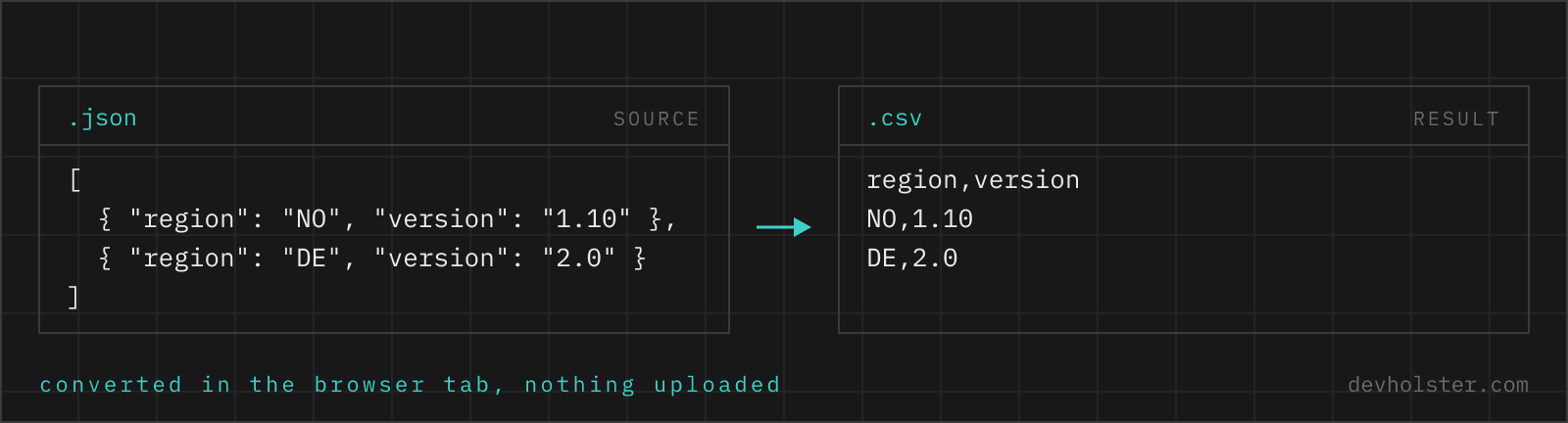
Turning JSON into spreadsheet-ready CSV: which input shapes work, how nested objects flatten into dot-path columns, why Excel mangles encodings and delimiters (and how this tool sidesteps both), plus the quoting rules that keep commas in your data from breaking rows.
Why convert JSON to CSV
Because the person who needs the data next does not want JSON. APIs, logs and databases speak JSON; controllers, analysts and customers live in Excel, Google Sheets and BI tools, and their lingua franca is CSV. "Export the API response for finance" is, in practice, a JSON to CSV conversion, and it comes up weekly in most teams.
CSV is also the bulk-loading format of record. PostgreSQL's COPY, MySQL's LOAD DATA, pandas' read_csv, every ETL tool: they all ingest CSV faster and with less ceremony than JSON. Converting a nested API dump into a flat table is often the first step of any data work, and it is precisely the step this tool automates, nested structures included.
How to use this converter
Paste JSON on the left or drop a .json file onto the pane; the CSV builds on the right as you type. The stats strip shows the resulting row count, which should match the length of your input array, a quick sanity check.
- Paste or drop the JSON. An array of objects is the natural input; other shapes are handled as described below.
- Pick the delimiter for your consumer. Comma by default, semicolon for German-locale Excel via the option.
- Copy or download. The download carries a UTF-8 byte order mark, so Excel opens umlauts and special characters correctly on double-click.
--flatten
On by default: nested objects and arrays unfold into dot-path columns (contact.email, tags.0). Off keeps one column per top-level key and writes nested values as JSON strings into their cell, which is the right shape when a downstream system re-parses those cells.
--header
Writes the column-name line at the top. Off is for appending to existing files or bulk loaders with separately declared columns.
--semicolon
Switches the delimiter from comma to semicolon, the separator Excel expects in German, Austrian and most European locales.
Which JSON shapes convert, and into what
| Input shape | Result |
|---|---|
Array of objects [{…}, {…}] | one row per object, columns from the union of keys |
Single object {…} | one data row |
Array of primitives [1, 2, 3] | a single value column, one row each |
| Objects with differing keys | all keys become columns; missing values are empty cells |
| Nested objects/arrays | dot-path columns when flattening, JSON-in-cell when not |
The union-of-keys behaviour is worth internalising: no row is rejected for having extra or missing fields. That makes the tool forgiving with real-world API data, where optional fields appear on some records only.
Flattening nested JSON into columns
Tables are flat; JSON is not. The bridge is path naming: every leaf value gets a column named after the path that reaches it, dots between object keys, numeric indices for array positions. The sample data shows it compactly, contact.email and contact.city columns emerge from a nested contact object, and a row without a contact.city value simply leaves the cell empty.
Flattening handles the common depth of API responses (two to four levels) without configuration. Where it reaches its limits is repeated substructure: an items array with dozens of entries per row explodes into dozens of indexed column groups. At that point the data is relational, not tabular, and wants to be two CSVs joined by an ID. Recognising that moment is the analyst's job; making both exports trivial is ours.
Opening the result in Excel without mangling
Excel is the most common destination for these files and the source of the two classic support questions, so here is exactly what happens:
- Encoding. A UTF-8 CSV without a byte order mark opens in Excel with
äin place ofä, because Excel falls back to a legacy code page. The file this tool downloads starts with a BOM, and current Excel then decodes UTF-8 correctly. This is a download-time nicety only; the copied text stays clean, byte-for-byte. - Delimiter. Excel picks the separator from the system locale: comma in US/UK locales, semicolon where the comma is the decimal separator (Germany, Austria, and most of Europe). A mismatch lands the whole file in column A. The
--semicolonoption produces the file your locale expects; alternatively, Excel's Data → From Text/CSV import lets you choose the delimiter regardless of locale. - Silent value conversion. Excel reformats things it recognises: long numbers become scientific notation,
1/2becomes a date, leading zeros vanish. That happens inside Excel after a double-click open and affects any CSV from any tool; the import dialog, where columns can be typed as text, is the way around it for identifier columns.
Quoting and escaping, the RFC 4180 way
CSV looks trivial until a value contains a comma. The rules this tool applies are the ones from RFC 4180, which every serious parser implements: values containing the delimiter, a double quote or a line break get wrapped in double quotes; a literal " inside a quoted value is doubled to ""; everything else is written bare. Rows end with \r\n, the line ending the RFC specifies and Excel is happiest with.
So Linus, Jr. arrives as one cell despite its comma (the sample demonstrates it), a note with a line break stays one cell high in parsers even though it spans two lines of text, and He said "no" survives verbatim. If you have seen CSVs where a stray comma shifted every subsequent column one place to the left, that was a generator skipping these rules, not a property of the format.
What CSV cannot represent
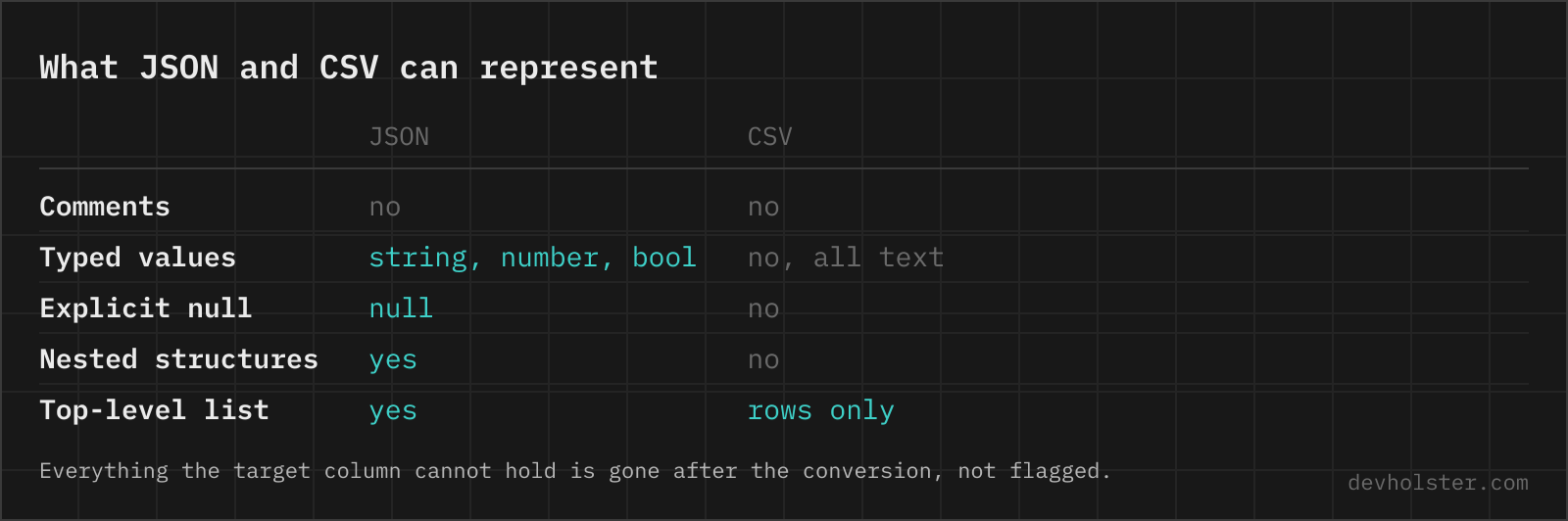
CSV is a table of text cells, and conversion means accepting that:
- Types become text.
true,42and"42"are indistinguishable in the file. Consumers re-type columns by convention or configuration. - null and empty string collapse. Both are an empty cell. Databases importing the file usually offer a "treat empty as NULL" switch; that decision now lives there.
- Hierarchy is gone. The dot paths encode where values came from, but nothing enforces the structure. Converting the CSV back to nested JSON needs those column names intact.
- One table per file. JSON happily nests heterogeneous data; CSV forces one rectangle. Data with parent-child relationships wants multiple files, as covered above.
One more caution that fits no other section: if a converted file will be opened in Excel and contains values a user typed somewhere (form input, chat messages), cells starting with =, +, - or @ are executed by Excel as formulas. This tool converts data faithfully and does not rewrite cells, so when exporting untrusted text for spreadsheet use, prefix such cells with an apostrophe in the consuming step. For your own API data, the concern does not arise.
Flattening nested JSON
Is it safe to convert customer data from JSON to CSV in an online tool?
Only in a tool that converts in your browser. JSON to CSV jobs are almost always exports of user lists, orders or analytics events, so uploading one to an unknown backend turns a five-second task into a reportable data transfer under GDPR. The conversion runs here as JavaScript in your tab, nothing is uploaded or logged, and there is no server that could see the data. Check any other tool the same way: open the Network tab in devtools and convert something harmless first.
How do I convert a JSON file to CSV?
The work is not the conversion, it is deciding what a row is. Once you know which array holds the records and how the nested fields should flatten, every route produces the same file: a browser converter for a one-off or a clipboard snippet, jq -r on the shell for something you script, pandas.json_normalize in Python for anything analytical, and Power Query (Data → Get Data → From JSON) if the result is going into Excel anyway. What no tool can decide for you is what happens to nested arrays, because an order with three line items is either one row with numbered columns or three rows, and only you know which one the receiving system wants.
How does nested JSON become CSV columns?
With --flatten on (the default), nested objects unfold into dot-path columns: {"contact": {"email": "…"}} becomes a contact.email column. Arrays inside objects flatten with numeric indices, so tags: ["a", "b"] becomes tags.0 and tags.1. With --flatten off, nested values are embedded as JSON strings in a single cell instead.
What happens when my objects have different keys?
The tool builds the header from the union of all keys across all rows, in first-seen order; rows missing a key get an empty cell in that column. That means uneven API responses convert without errors. It also means one stray misspelled key in row 900 quietly adds a column, so scan the header line when the column count surprises you.
Why does Excel show my umlauts as garbage like ä?
Because Excel assumes a legacy encoding when a UTF-8 CSV has no byte order mark. The file this tool downloads starts with a BOM, so double-clicking it opens with ä, ö, ü and emoji intact in current Excel versions. If you copy the text instead and save it yourself, save as "UTF-8 with BOM" or use Excel’s Data → From Text/CSV import and pick UTF-8.
Excel puts everything in one column. Why?
Your Excel locale expects semicolons. In German, Austrian and most continental European locales, Excel uses ; as the CSV separator because , is the decimal comma; a comma-separated file then lands in a single column. Turn on the --semicolon option and re-download, or import via Data → From Text/CSV, where the delimiter can be chosen manually.
Comma or semicolon: which delimiter should I use?
Match the consumer. Programmatic consumers (databases, pandas, Google Sheets, US Excel) expect commas, which is also what RFC 4180 describes. Excel with a German or Austrian locale expects semicolons for double-click opening. The data is identical either way; only the separator byte changes, and you can regenerate with the other delimiter in one click.
How are commas, quotes and line breaks inside values handled?
By RFC 4180 quoting: any value containing the delimiter, a double quote or a line break is wrapped in double quotes, and quotes inside are doubled ("" for "). Every CSV parser worth using understands this, so addresses with commas and descriptions with line breaks survive intact. Values that need no quoting are written bare to keep the file readable.
How do I convert JSON to CSV for Google Sheets?
Convert with the default comma delimiter, download, then in Sheets use File → Import → Upload. Sheets detects the delimiter and encoding automatically, so both comma and semicolon files import cleanly. Pasting the CSV text directly into a sheet also works: use Data → Split text to columns if it lands in one column.
How do I convert JSON to CSV with jq?
The idiomatic one-liner is jq -r '(.[0] | keys_unsorted) as $k | $k, map([.[$k[]]])[] | @csv' data.json, which writes the header from the first object and then one row per record. @csv is the part that matters: it quotes and escapes to RFC 4180, while string interpolation with join(",") silently corrupts any value containing a comma. Two caveats. keys_unsorted from the first object means a record with extra keys loses them, so add a normalising step if the objects differ. And @csv rejects nested values, so flatten first, for example with [.id, .user.email, (.tags | join(";"))] instead of the generic form.
What happens to arrays of objects inside a row?
They flatten to indexed columns: items: [{"sku": "A"}, {"sku": "B"}] produces items.0.sku and items.1.sku. That works well for short, bounded lists and degrades for long ones (a row with 50 items adds columns for all 50). For order-with-line-items data, consider whether the line items should be their own CSV, which is how relational tools want the data anyway.
How do I flatten nested JSON into columns in Python?
pandas.json_normalize does it in one call: pd.json_normalize(records) turns {"user": {"email": …}} into a user.email column, and the sep argument changes the separator if dots are awkward downstream. For a list nested inside each record, pass record_path and meta, as in pd.json_normalize(orders, record_path="items", meta=["id", "customer"]), which produces one row per line item and repeats the order fields. That is the reshaping decision the flattening question always comes down to. Without pandas, a short recursive function that walks the object and joins the key path does the same job, which is exactly what the --flatten option here runs.