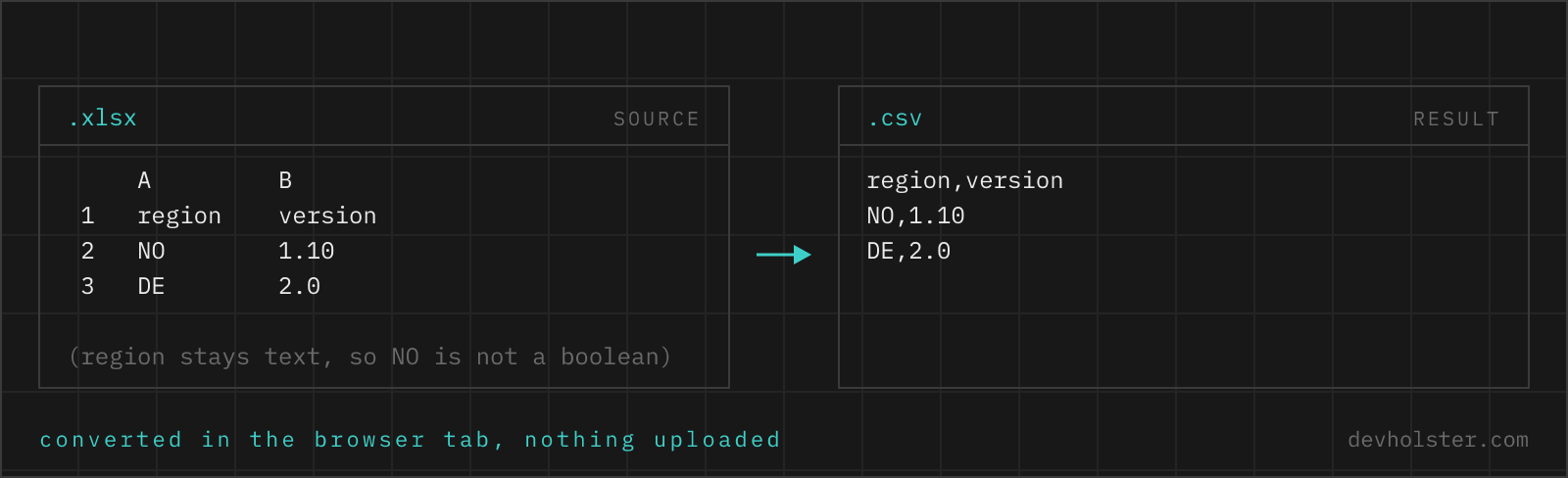
What gets lost on the way out, and what does not
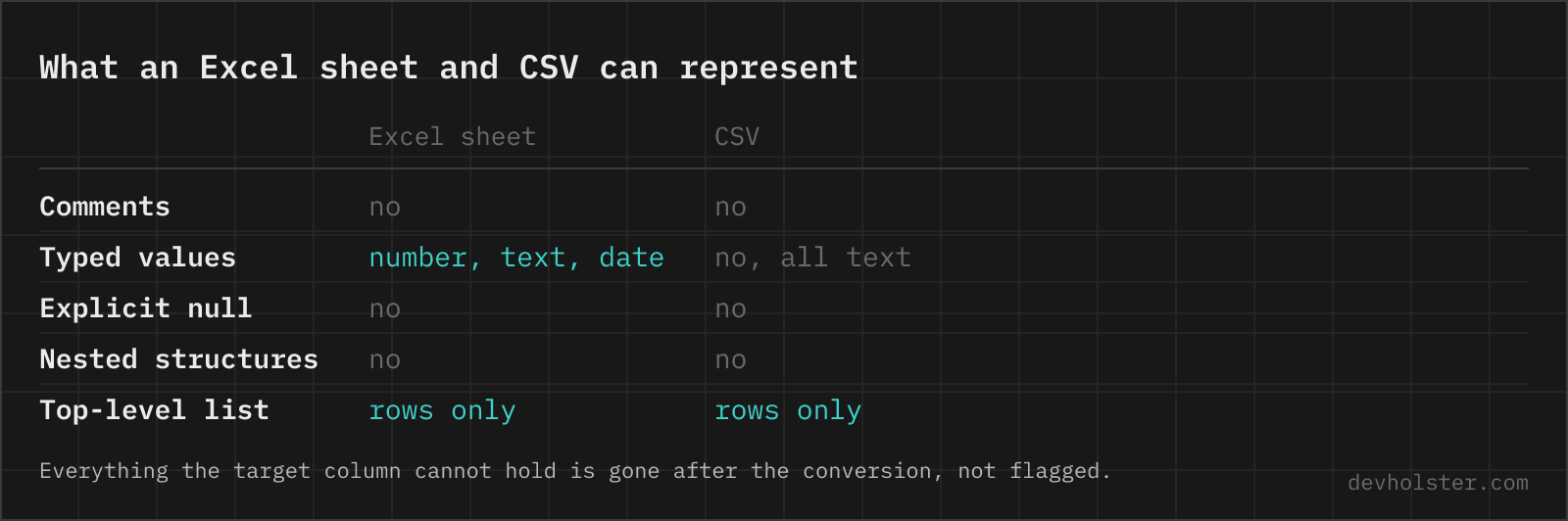
An .xlsx is a ZIP archive of XML parts, standardised as ECMA-376, and it carries far more than a table: cell types, number formats, fonts, formulas, charts, several sheets, frozen panes, comments. A CSV carries one table of text. So the conversion is lossy by definition, and the only question worth asking is whether it loses the right things.
Gone: formatting, colours, column widths, charts, merged cells, every sheet except the one you export, and formulas unless you ask for them. Kept: every value, in full precision, as text. That is the trade you are making on purpose, because the reason to want CSV is almost always a consumer that has no idea what a merged cell is, a database importer, a git-tracked data file, an API upload, a script.
The part that goes wrong in practice is not the formatting. It is the values that need interpretation on the way out: dates, numbers with a format, formulas and the phantom rows at the bottom of the sheet. Those four are what the options on this page are about.
How to use this converter
Drop an .xlsx or .xlsm file on the left pane, or pick one with the file link. The workbook is unzipped and parsed in your tab, the left pane lists every sheet it found, and the right pane shows the first sheet as CSV.
- Drop the workbook. The sheet list appears immediately, with row and column counts and a marker on hidden sheets.
- Pick the sheet. The
sheetfield takes a number (2) or a name (Orders). It is the field people miss, and it is why "the converter exported the wrong data" is nearly always the first sheet being exported instead of the third. - Copy or download. The download is UTF-8 with a BOM and named after the sheet, so Excel opens it back correctly on a double-click.
--trim
On by default. Drops trailing empty rows and columns before writing. Sheets that were once bigger than they are now keep their old used range, and without trimming you get a CSV with 39,700 lines of commas at the end.
--semicolon
Writes semicolons instead of commas, for a German, French or Spanish Excel that expects them, or for a target system whose data is full of commas.
--formulas
Writes =SUM(B2:B9) instead of the number Excel last calculated. Useful when you are diffing two versions of a model or documenting a spreadsheet, useless when you are loading data somewhere.
Stored value against displayed value
Every cell in a workbook has two faces: what is stored and what is shown. 45426 stored with the format dd.mm.yyyy shows as 14.05.2024. 1.234567 stored with the format 0.00 shows as 1.23. Exporters have to pick one, and the two common choices produce visibly different files.
| Cell | Excel Save As CSV | This converter |
|---|---|---|
| Date, German format | 14.05.2024 | 2024-05-14 |
| Date with a time | 14.05.2024 09:30 | 2024-05-14 09:30:00 |
1.234567 shown as 1.23 | 1.23 | 1.234567 |
| Currency cell | € 1.249,90 | 1249.9 |
| Formula cell | last calculated value | last calculated value |
We write the stored value on purpose. A CSV that says 2024-05-14 and 1249.9 loads into PostgreSQL, pandas, DuckDB and a JSON API without a single format string, while one that says 14.05.2024 and € 1.249,90 needs a locale-aware parser and usually gets a broken one. The cost is that the export no longer looks like the sheet, which matters if a human is going to read the CSV directly. In that case export from Excel instead; it is the one job Excel does better here.
One quirk of the date system is worth knowing because it survives every conversion: Excel counts 29 February 1900, a day that did not exist, to stay compatible with Lotus 1-2-3. Serial numbers below 60 are therefore one day off from a naive calculation. We correct for it, which is why an old date from a 1900s sheet comes out right here and one day early in some other tools. Workbooks saved by old Mac versions of Excel use a second epoch starting in 1904; that flag is read from the file too.
Sheets, hidden sheets and formulas
Most converters export the first sheet and say nothing about the rest. That is fine until the workbook you were sent has the summary on sheet 1 and the actual 4,000 rows on sheet 3. The list on the left names every sheet in the file, in tab order, with its size, and marks the hidden ones, which is often where the interesting data sits in a workbook that came out of a reporting tool.
Formula cells store two things: the expression and the value from the last recalculation. Exporting the value is the default because that is what the data actually is. What surprises people is the empty case: a workbook generated by a script, typically with openpyxl or a similar library, contains formulas that have never been calculated, because those libraries have no formula engine. There is no cached value to export, so those cells come out empty here and in every other reader, including pandas. Opening the file once in Excel or LibreOffice and saving fixes it permanently.
Encoding and delimiter, the two settings that ruin exports
Inside an .xlsx, text is UTF-8 in XML, so there is no encoding question at all. It appears the moment the data becomes a CSV, and it appears twice.
The first is Excel's own Save As menu, where "CSV (Comma delimited)" writes the system ANSI code page and turns every character outside it into a question mark, permanently, while "CSV UTF-8 (Comma delimited)" writes UTF-8 with a BOM. The names look interchangeable in the dropdown and are not. Our download is always UTF-8 with a BOM, which Excel, LibreOffice, Numbers and Google Sheets all read correctly.
The second is the delimiter, which on a Windows machine comes from the regional list separator: comma in en-US, semicolon across most of continental Europe. It is a machine setting, not a file property, so an export made in Vienna and opened in Boston splits differently. If you know where the file is going, set --semicolon accordingly. If you do not, a comma-separated UTF-8 file is the more portable default, and the receiving side can always run it through our delimiter converter.
xls, xlsb, ods and the other things people call Excel files
| Extension | What it really is | Readable here |
|---|---|---|
.xlsx | ZIP of XML parts (OOXML) | yes |
.xlsm | The same, with a macro part that we ignore | yes |
.xls | OLE2 compound file with binary BIFF8 records | no, save as .xlsx first |
.xlsb | ZIP of binary BIFF12 parts | no |
.ods | OpenDocument, ZIP with a different XML layout | no |
.numbers | Apple package with a protobuf payload | no |
The tool identifies what you dropped from the first bytes of the file and says so, instead of throwing a parse error at you. An .xlsm works exactly like an .xlsx because the macro project is just another part inside the same ZIP, and nothing here executes it. For the other three, one round trip through the application that owns them is the whole fix.
Online tool vs. Excel, pandas and the CLI
Excel exports CSV in two clicks and is the right choice when the CSV is for a person to read, because it writes the values the way the sheet displays them. It is the wrong choice for a machine, for the encoding reason above and because it only ever exports the active sheet.
pandas is the right choice inside a pipeline, with dtype=str so it does not re-guess types that the workbook already knew. xlsx2csv --all is the right choice for a workbook with fifteen sheets you need as fifteen files. LibreOffice headless is the right choice on a server that already has it installed, keeping in mind that it exports only the first sheet.
This page wins in the case that comes up most: someone sent you a workbook, you need one sheet of it as CSV, and the numbers in it are nobody else's business. Script the recurring exports; for the file sitting in your downloads folder right now, drop it here.
Exporting a workbook to CSV
Is it safe to put a company workbook into an online Excel converter?
Only into one that opens the file in your browser. Workbooks are where salaries, price lists and customer tables live, and the usual online converter uploads the file, unzips it on a server and mails you a link, which means your rows sat in someone else’s storage. This page unzips the workbook in the tab with the browser’s own DecompressionStream and parses the sheet XML in JavaScript, so nothing is sent anywhere. The proof takes ten seconds: open the network tab, drop a workbook, and watch that no request appears.
Why does my CSV show 45426 instead of a date?
Because Excel stores dates as a serial number counting days since 30 December 1899, and whatever wrote the CSV exported the raw number instead of the formatted text. 45426 is 14 May 2024. To convert back: in Excel, format the cell as a date; in Python, pd.to_datetime(45426, unit="D", origin="1899-12-30"); in SQL, DATEADD(day, 45426, "1899-12-30"). This converter never hands you a serial number, it writes ISO 8601 (2024-05-14, with the time appended when the cell has one), because that is the one date format every database and language parses without a format string.
How do I convert an XLSX file to CSV in Python?
pandas in two lines: pd.read_excel("book.xlsx", sheet_name="Orders", dtype=str).to_csv("orders.csv", index=False). It needs openpyxl installed, and dtype=str is what stops pandas from rewriting article numbers and long IDs on the way through. For a workbook too big to hold in memory, openpyxl in read_only=True mode with load_workbook(path, read_only=True, data_only=True) streams row by row; data_only=True gives you the last calculated values instead of the formulas.
How do I convert Excel to CSV from the command line?
Three that work well: xlsx2csv book.xlsx out.csv (pip install xlsx2csv, has --sheetname and --all for every sheet), ssconvert book.xlsx out.csv from Gnumeric, and libreoffice --headless --convert-to csv book.xlsx. The LibreOffice route only ever exports the first sheet, which surprises people often enough to be worth knowing before you script it. csvkit’s in2csv also reads .xlsx and pipes straight into its other tools.
Why does Excel’s own Save As CSV break umlauts and special characters?
Because the plain "CSV (Comma delimited)" entry writes the file in the system ANSI code page, usually Windows-1252, and every character outside it becomes a question mark. Once saved, those characters are gone. The fix inside Excel is to pick "CSV UTF-8 (Comma delimited)" instead, which exists since Excel 2016 and writes UTF-8 with a BOM. Exporting here sidesteps the question: the workbook XML is UTF-8 already and the download carries a BOM, so Excel reads its own file back correctly.
How do I export all sheets of a workbook to separate CSV files?
Here, one at a time: the sheet field takes a number or a name, and the list on the left shows every sheet with its size, hidden ones included. For a workbook with twenty sheets, script it instead: xlsx2csv --all book.xlsx outdir/ writes one file per sheet, and in Python for name, df in pd.read_excel("book.xlsx", sheet_name=None).items(): df.to_csv(f"{name}.csv", index=False) does the same in one line. We deliberately did not build a zip-of-CSVs download, because it turns a two-second job into a file you then have to unpack.
Does the CSV contain formulas or their results?
Their results, which is what you want in 95% of exports, and the formula itself with --formulas on. A workbook stores both for every formula cell: the expression and the value Excel calculated last time it was open. One catch worth knowing: files written by libraries such as openpyxl contain the formula but no calculated value, because those libraries have no formula engine. Such cells come out empty here, and opening the file in Excel or LibreOffice once and saving fills the values in.
How do I convert an .xls file from Excel 97-2003 to CSV?
Convert it to .xlsx first, because .xls is a completely different format: an OLE2 compound document with binary BIFF8 records inside, not a ZIP of XML. Open it in Excel or LibreOffice and save as .xlsx, or run libreoffice --headless --convert-to xlsx old.xls. In Python, the xlrd package still reads .xls (support for .xlsx was removed in xlrd 2.0), so pd.read_excel("old.xls") works with xlrd installed. This tool tells you which format you dropped rather than failing with a parse error.
Why does my export have thousands of empty rows or columns at the end?
Because the used range of the sheet grew once and never shrank. Deleting the contents of a row leaves the row itself in the file, so the workbook still claims to be 40,000 rows tall while only 300 hold data, and every exporter that honours the used range writes those empties out. The --trim option here drops trailing empty rows and columns before writing. Inside Excel the permanent fix is to select the empty rows, delete the rows themselves (not their contents), save and reopen.
Where does Excel get the semicolon from when it saves a CSV?
From the Windows list separator, which follows the regional format: a comma in en-US, a semicolon in de-AT, de-DE, fr-FR, es-ES and most of continental Europe, because those locales use the comma as the decimal mark. It is set under Control Panel, Region, Additional settings, List separator, and changing it changes what every Office app writes and expects. Since the setting lives on the machine and not in the file, the same CSV genuinely means different things in two offices, which is the single most common reason a shared export "arrives broken".
Can I convert an .xlsb, .numbers or .ods file here?
No, all three are different formats. .xlsb is Excel’s binary workbook (BIFF12 records inside a ZIP, not XML), .numbers is Apple’s package with a protobuf-based payload, .ods is OpenDocument with a completely different XML layout. Each of them needs its own parser, and none of them is common enough to justify the bundle size on a page about .xlsx. Save the file as .xlsx in its own application first; every one of those three can do it.
Why are the numbers in the CSV more precise than what the sheet showed?
Because a number format changes the display, not the value. A cell showing 1.23 can hold 1.234567, and this converter writes the stored value, so nothing gets rounded away on export. Excel’s own Save As does the opposite and writes what is displayed, which is why a round trip through Excel can quietly turn 1.234567 into 1.23. If you want the rounded numbers, round them in the sheet with ROUND() before exporting, so the value and the display agree.